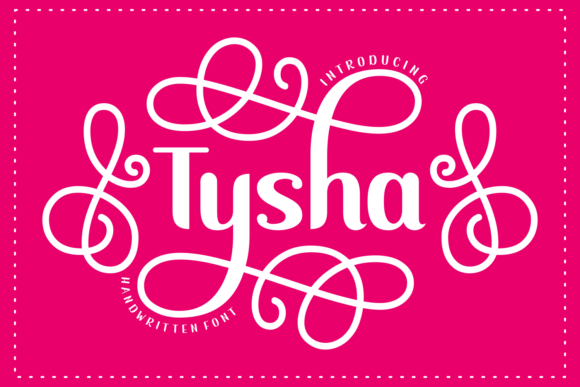
Tysha Font: Unlocking Whimsical Design Without the Technical Headaches
When you are looking for a typeface that instantly captures attention, Tysha stands out as a compelling choice for designers and creators who want to inject personality into their projects. It is not just another decorative font; it is a cool, detailed, and whimsical display typeface that brings a sense of playful sophistication to any layout. However, simply downloading a font file does not guarantee success. Many users stumble when trying to integrate unique character sets into their workflows, leading to frustration or subpar design outcomes.
The real value of Tysha lies in its technical architecture, specifically its PUA encoding. Understanding this feature is the difference between struggling with missing glyphs and creating stunning visual compositions with ease. This guide breaks down why Tysha is worth your consideration, highlights common pitfalls to avoid, and provides practical advice on how to leverage its full potential.
What Makes Tysha Distinct?
Tysha is designed as a display font, meaning it shines brightest in headlines, logos, posters, and short text blocks rather than long-form body copy. Its whimsical nature allows it to soften serious topics or add flair to casual branding. The "cool" aesthetic comes from its balanced proportions and intricate details, which give it a hand-crafted feel without sacrificing readability at larger sizes.
For entrepreneurs, marketers, and bloggers, having access to a distinctive font like Tysha can elevate brand identity. It helps differentiate content in a crowded digital landscape. Whether you are designing a wedding invitation, a craft beer label, or a social media graphic for a lifestyle blog, Tysha offers the visual punch needed to stop the scroll.
The Power of PUA Encoding
If you have ever downloaded a font only to find that special swash or alternate character doesn't appear when you try to type it, you likely encountered a limitation in standard keyboard mapping. This is where Tysha’s PUA (Private Use Area) encoding becomes a significant advantage.
In standard Unicode, there are limited slots for characters. Fonts often use these slots for accented letters or symbols. However, many modern display fonts include dozens of alternates, ligatures, and swashes that don't fit into standard keys. To solve this, designers use the Private Use Area—a section of the Unicode standard reserved for private agreement on character codes.
By encoding Tysha’s extra glyphs in the PUA, the creator ensures that all swashes and alternate characters are accessible without cluttering the standard character set. This means you get a comprehensive toolkit of design elements in one package. Instead of settling for the basic letterforms, you gain access to a rich library of stylistic variations that can make your designs look custom-made.
Common Mistakes When Using Specialized Fonts
Even with powerful tools like Tysha, users often make errors that diminish the final result. Being aware of these common traps will save you time and improve the quality of your work.
Misunderstanding Glyph Accessibility
A frequent misconception is that all characters in a font are available via the standard keyboard. With PUA-encoded fonts, this is rarely the case. Users often complain that they cannot "type" the fancy swashes because pressing 'A' still yields the standard 'A'.
Correction: You do not type PUA characters directly. Instead, you must use a font panel, a glyph viewer, or a specific input method provided by your design software. If you are using Adobe Illustrator, InDesign, or Photoshop, open the Glyphs panel. Here, you can browse every single character included in Tysha. For Microsoft Word or PowerPoint users, you may need to use the Insert Symbol dialog box and select the appropriate font subset.
Ignoring this step leads to wasted hours searching for characters that aren't where you expect them to be. Once you know where to look, accessing these features becomes intuitive.
Overusing Display Typefaces
Another pitfall is applying Tysha to entire paragraphs of text. While it is tempting to use a beautiful font everywhere, display fonts are meant to be used sparingly. Their intricate details can become muddy and hard to read when scaled down or used in dense blocks.
Better Approach: Reserve Tysha for headlines, titles, quotes, or key phrases. Pair it with a clean, neutral sans-serif or serif font for body text. This contrast creates hierarchy and ensures your message is communicated clearly. For example, use Tysha for a catchy headline like "Summer Sale" and a simple Arial or Helvetica for the product details.
Neglecting Licensing and Usage Rights
Before adding Tysha to your favorite creations, always verify the license. Fonts are intellectual property, and misuse can lead to legal issues or unexpected costs. Some fonts are free for personal use but require a commercial license for business projects.
Checklist:
- Is the font free for commercial use?
- Are there restrictions on the number of impressions or users?
- Do you need an extended license for merchandise or broadcast?
Skipping this verification process can result in takedown notices or fines, which undermines the professional image you are trying to build. Always purchase from reputable sources or confirm the license terms on the official website.
Practical Tips for Maximizing Tysha
To get the most out of Tysha, consider these actionable strategies that enhance both efficiency and aesthetic appeal.
Use Software-Specific Features
Modern design software has evolved to handle complex font features seamlessly. If you are using Adobe Creative Cloud, take advantage of the OpenType panel. Even if Tysha uses PUA encoding, some versions may also support OpenType features. Explore the panel to see if automatic ligatures or stylistic sets are available. This can streamline your workflow by allowing you to toggle between different styles with a single click.
Create Swatch Libraries
If you frequently use Tysha for client work or personal projects, create a library of pre-designed text frames using its best swashes. Save these as templates or snippets. This approach reduces decision fatigue and ensures consistency across your brand materials. For instance, create three header styles: one bold and solid, one with elegant swashes, and one mixed with smaller accent text.
Test Across Devices
While Tysha looks amazing on high-resolution screens, ensure it renders well on mobile devices and print materials. Display fonts can sometimes lose detail when compressed for web use. Test your designs at various sizes. If the whimsical details disappear or look pixelated, scale back the usage or increase the font size. Remember, clarity should never be sacrificed for style.
Evaluating Tysha for Your Project
Deciding whether Tysha is the right fit depends on your project's goals. Ask yourself:
- Does the project need personality? If you are designing a corporate annual report, Tysha might be too informal. For a creative agency portfolio or a boutique shop sign, it is perfect.
- Are you comfortable navigating glyph panels? If you prefer simplicity, you might find the PUA system cumbersome initially. However, once learned, it offers unparalleled control.
- Is the budget aligned? Ensure the cost of the font fits within your project expenses. Weigh the investment against the unique value it adds to your design.
Tysha is more than just a font; it is a tool for expression. By understanding its technical quirks and avoiding common usage errors, you can confidently incorporate it into your designs. Let yourself be amazed by the outcomes generated when you combine technical knowledge with creative vision. The key is to approach the font with respect for its structure and intention, ensuring that every swash and detail serves a purpose in your communication.